

True Launch Bar features
- Compatibility with standard Quick Launch (unique)
- Grouping links into popup menus
- Full support of Windows XP Visual Styles
- Windows 7 compatible
- The Aero Glass Effects for Windows Vista/7
- Improved separators (unique)
- Virtual Folders (unique)
- Drag & Drop
- Hot keys
- Run your shortcuts without click (unique)
- Skins
- Fast toolbar switching (unique)
- Related Links (unique)
- Protection (unique)
- Plugins (unique)
- Recently accessed button
- Thumbnails View (unique)
- Auto-sensing toolbar (unique)
- Overlay Images on menu (unique)
- Hot keys manager
- Backup/Restore toolbar
- Improved Tooltips with HTML support (unique)
- Improved tips (unique)
- Support PNG images as icon
- Using 3 state PNG image as button (unique)
- Redistributing toolbars
- Context menu templates
- Integration with StartKiller (unique)
- Changing default command
- Customizing buttons and menu items
- Improved Custom Colors
- Tear Off Menu (unique)
- Column break for separators
- Combine the default menu items with Icon View menu items
- Menu labels Word Wrap
- Docked menus with auto-hide feature
- Standalone TLB: Toolbar Tags
- Background color for any item. (unique)
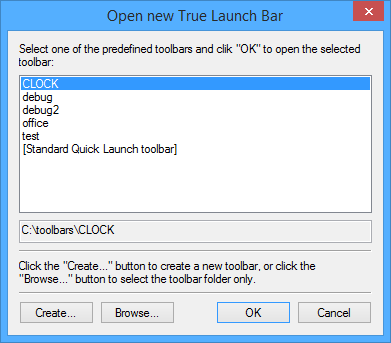
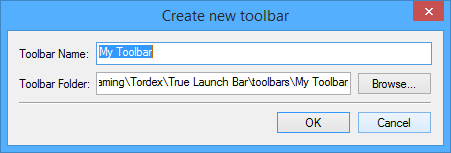
- Toolbars management. (unique)
We are constantly improving True Launch Bar. All new features are included in the latest beta version. Visit our beta area and find out about the huge number of new features of True Launch Bar.
Compatibility with standard Quick Launch
True Launch Bar is fully compatible with the standard WindowsTM Quick Launch toolbar. It uses the same folder for shortcuts. If some program installs an icon into Quick Launch, then the program also installs the icon for True Launch Bar as well. True Launch Bar can be docked into the taskbar like just like Quick Launch.Grouping links into popup menus
The huge advantage of True Launch Bar is popup menus. You can create menus on in the True Launch bar panel and place your shortcuts there. This will save space on your taskbar and give you another dimension in using the taskbar. True Launch Bar is Quick Launch on steroids!!!Full support of Windows XP Visual Styles
True Launch Bar completely supports Windows XP Visual Styles. You turn on the Flat Menus option and TLB will begin to look like All Programs menu from the Start Button.Windows 7 compatible
Since version 4.4 True Launch Bar is Windows 7 compatible. True Launch Bar supports all Windows 7 features including the Aero interface.The Aero Glass Effects for Windows Vista/7
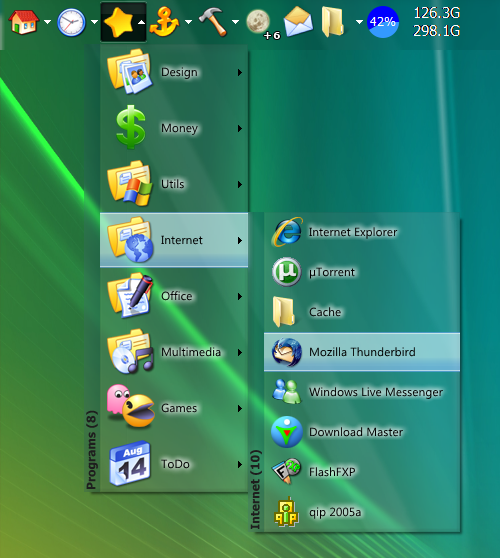
True Launch Bar allow you make the menus semitransparent by using the new Aero Glass effect.
This feature works on Windows Vista/7 with Aero turned on. To enable the glass effect, open the TLB Settings->Menu->Effects. You can define the glow text color also. This allow you to see text on every background.
Improved separators
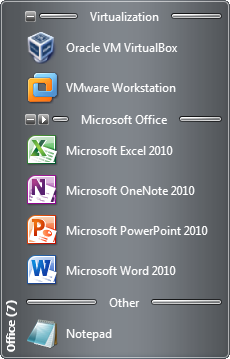
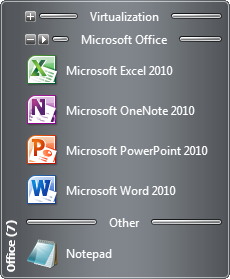
Separators help you to combine your shortcuts into groups inside menus or on the toolbar. The separator is simply a horizontal or vertical line. More-over you can add Titles (a separator with text). This will help you group and quickly find shortcuts inside menus.
True Launch Bar supprts some extra features for separators. Right-click on separator and select Enable Expand/Collapse menu item. You will see the small button with "-" picture at the left of the separator. If you click on this button all buttons below will hide and the button changes to a "+". Click on "+" button to show all buttons again.
Also you can turn on Enable Run All option in separators context menu and run all buttons with one click.
Note all operations on separators performed up to next separator or end of menu from below.
Virtual Folders
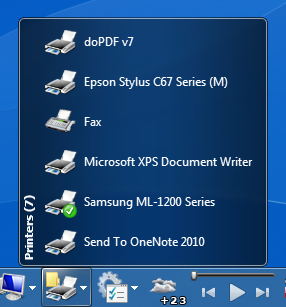
You can also create virtual folders on the True Launch Bar. When you create a virtual folder, you select the folder's content you want to see in the toolbar menu. It can be any folder on your disk or on a local network (Favorites, Programs, Recent, etc.); or you can add file system folders such as Printers, Control Panel, My Computer, Dialup Network or other similar folders. If you right-click on an item in the virtual folder, you can see a full context menu like in the Explorer window, and you can perform any action from this menu (Properties, Open, Delete...). In fact you can use True Launch Bar as small file manager. In addition you can add separators with titles into Virtual folders. This can greatly improve the grouping of items inside Virtual Folders.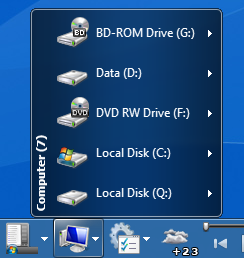
Drag & Drop
True Launch Bar fully supports Windows Drag&Drop technology. You can simply drag your shortcuts onto the toolbar or menu. You can use the left and right mouse button to drag shortcuts to the True Launch Bar. Using the right button dragging you will see a context menu with common actions.Hot keys
True Launch Bar lets you specify hot keys for menus and shortcuts to open them with a touch of a button.Run your shortcuts without click
Now True Launch Bar offer the "Run on mouse hover" feature. This means that you can run your shortcuts without click the mouse. Just point to your button and wait for some a short time (you can adjust the hover time) Press CTRL key to suspend (while holding) this feature.Skins
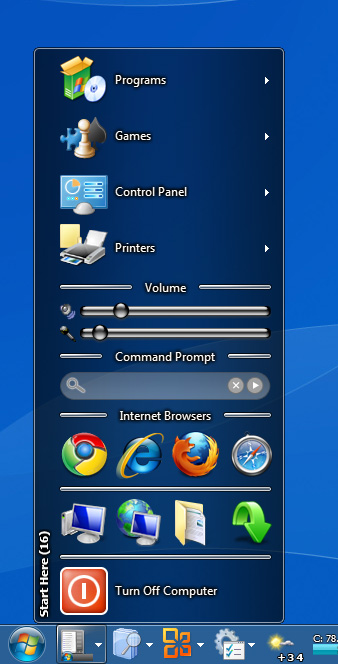
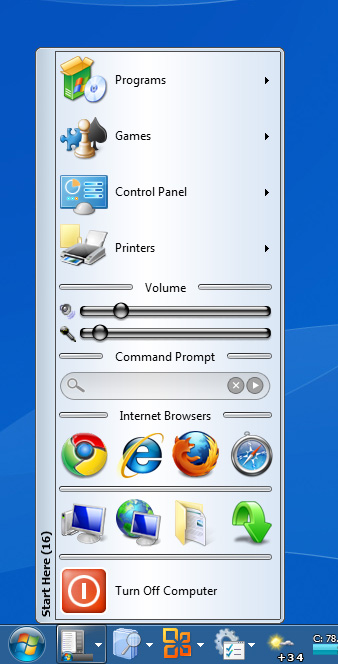
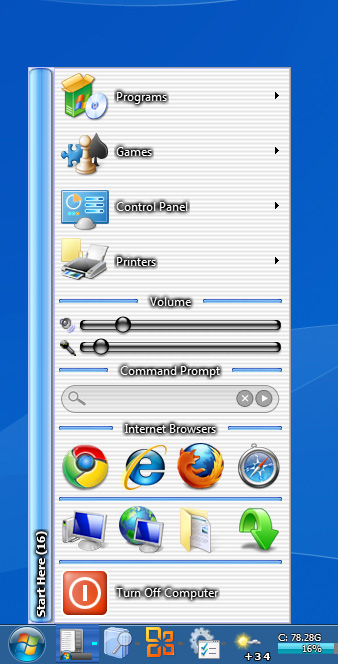
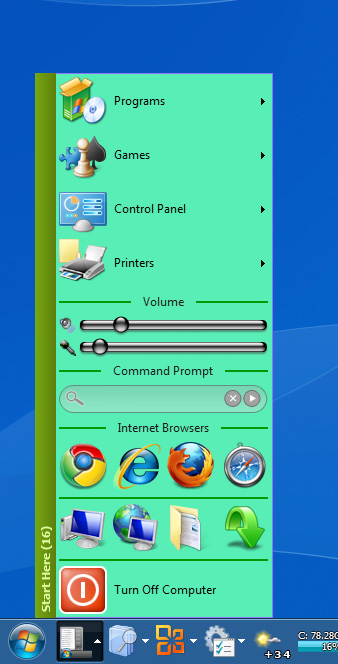
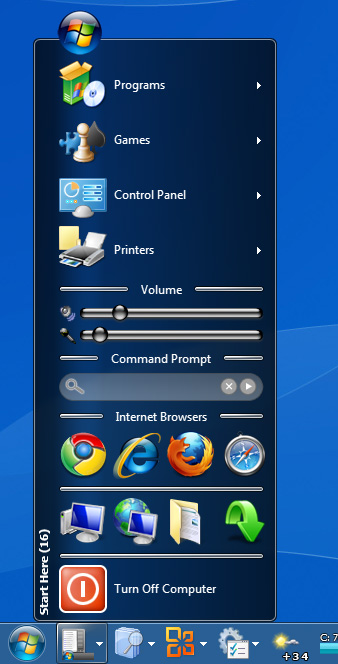
True Launch Bar is skinable. This means that you can change the appearance of buttons, menu items... Visit our Skins Library to download new skins.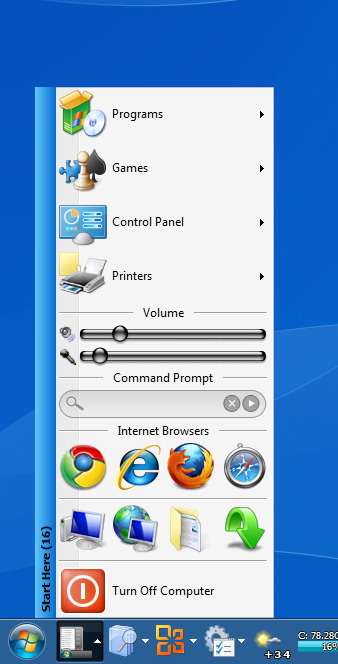
Fast toolbar switching
You can define some of shortcuts sets (toolbars) and quickly switch between them using TLB’s context menu. Define one toolbar for working and another for gaming!Related Links
You can add related links to every button in True Launch Bar. This can help you to associate more useful links (to web sites or files) with the particular application. Create your own links libraries!Protection
How many times has your child removed your shortcuts from the Launch Bar? Or your users lose some of their buttons? Now you can right-click on any button and select Protect. Select a password and nobody can run, delete or change your button. You can protect the setup with a password too.Plugins
The main feature of True Launch Bar is it's active content. Now you can use buttons not only for launching your applications but have button work like small applet. In most cases you will have a button to run your email client (like Outlook Express). If you add Mail Monitor onto the True Launch Bar this button can actually tell you when you have new mail and can run your email client. Visit our Plugins Library to find more plugins such as System Monitor, Media Control, Volume Control etc.Recently accessed button
You can add a special button named Recently accessed. This menu contain all the shortcuts you have run from the True Launch Bar. In the Advanced tab of TLB Settings dialog box you can set the max number of buttons to store and display inside Recently accessed.Thumbnails View
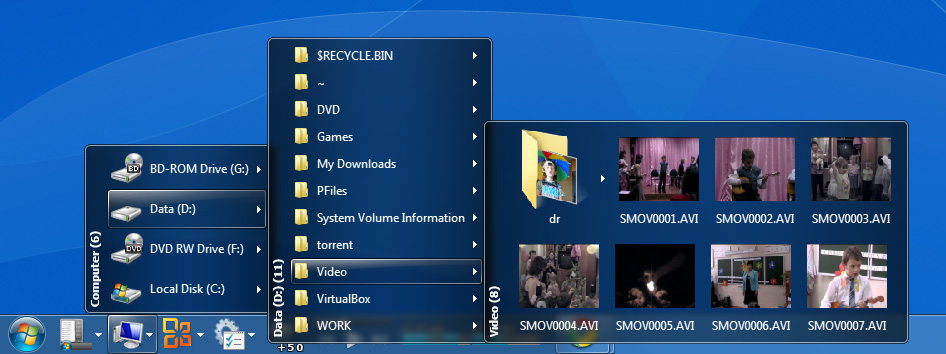
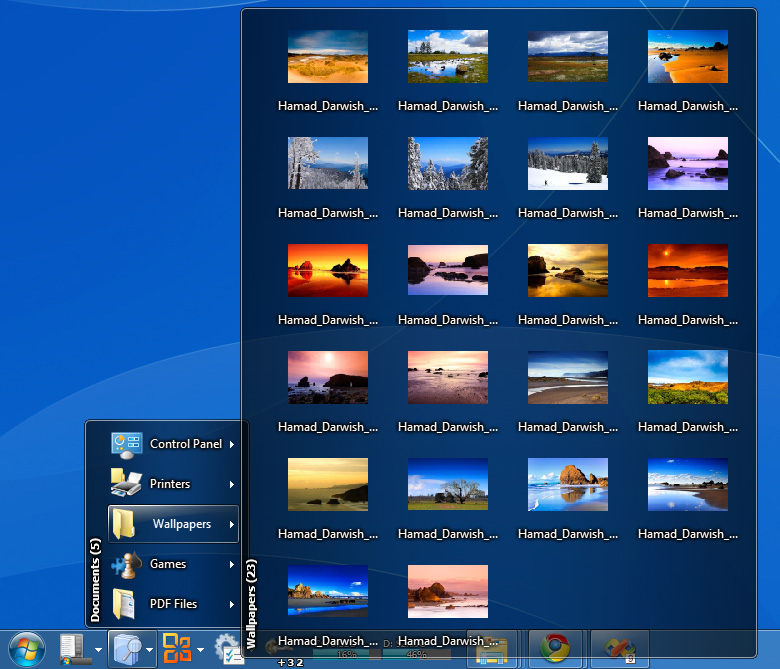
Thumbnail view is a miniature version of an image that is often used for quick browsing through multiple images. Now True Launch bar supports Thumbnails view. Set this view mode for your My Pictures folder.
Auto-sensing toolbar
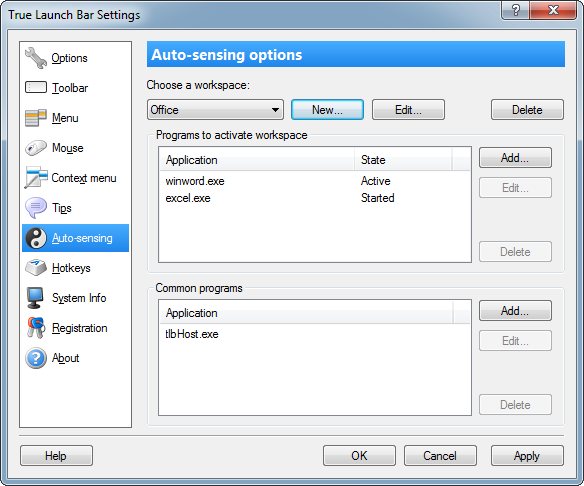
The new unique feature of True Launch Bar is Auto-Sensing toolbar. Now True Launch Bar can change content of toolbar Depending on the application in which you work. To setup auto-sensing open TLB settings dialog box and click on Auto-sensing tab.
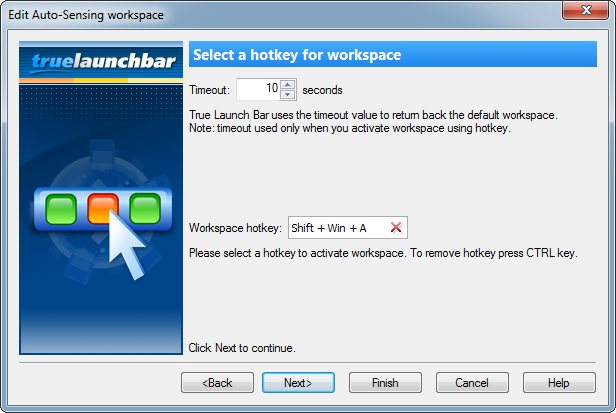
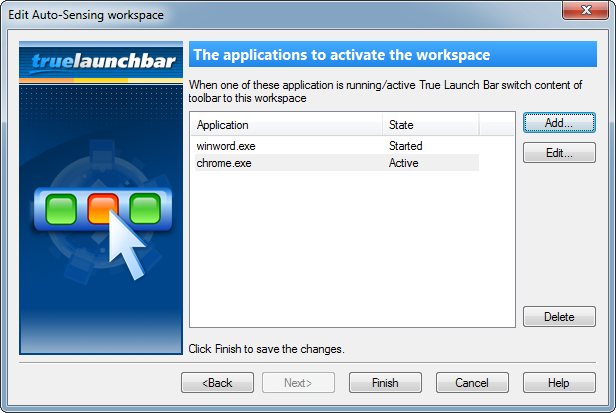
First you need to create workspace (press New... button on the right of combo box). Then select the folder where shortcuts and workspace data will be stored. Now add the Working programs for workspace. True Launch Bar can change content in two cases: when one of application has active window and when application is running (no matter active or not).
Take attention on Common programs list. Here you can add the application that you plan use in any workspace. If you activate one of that application True Launch Bar does not change toolbar content.
If True Launch Bar does not find any application of one of the workspaces, the content of toolbar will be shown from main toolbar folder.
Why to use auto-sensing
Auto-sensing can considerably improve accessibility of needed shortcuts/documents and save some space on task bar or other toolbars. If you are typing some documents in the MS Word or other text editor, you probably need only some shortcuts/menu on your toolbar. So you can create one workspace for documents editing and place there shortcuts to Word, Excel, Access, organized virtual folder for My (Your) Documents and some other shortcuts for quick access. When you close office application you get access to all range of buttons in main toolbar to begin other work. Also you create workspace for Internet surfing, and if you working in Internet Explorer then toolbar show only your favorites, FTP client, and something other internet-related.
Notes:
- You always can open two toolbars. One toolbar can used for static content, the second toolbar for auto-sensing.
- Running Windows Explorer does not effect the switching. So you can use this feature to add buttons to workspace toolbar.
- Set Toolbar's min size option of General tab into maximum possible buttons count. This will allow to auto-fit toolbar to the best size. Even you lock task bar (Windows XP only) auto-fit will work fine.
- Use main toolbar as Start Here toolbar.


Overlay Images on menu
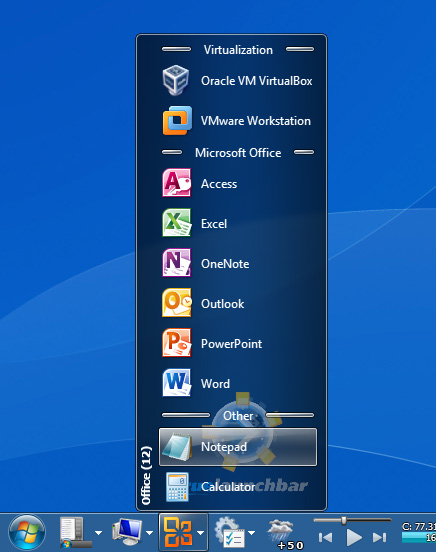
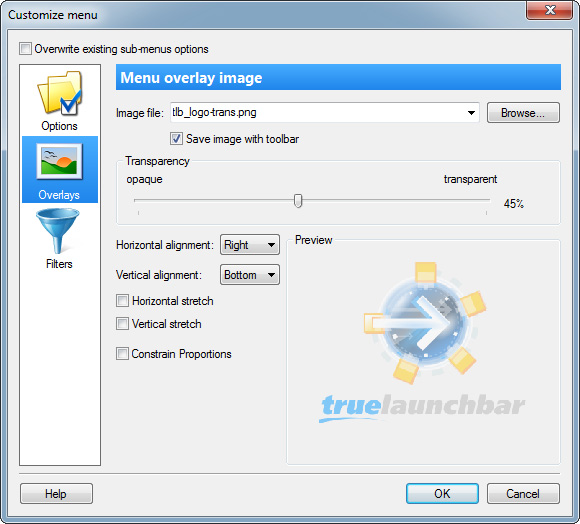
This feature allow you to set the images for the menus. Why you need this feature? First this is beautifully. Also this feature allow you quickly find out what menu you open. To set/remove overlay images right-click in the menu and select Customize Menu, then click the Overlay tab.
Hot keys manager
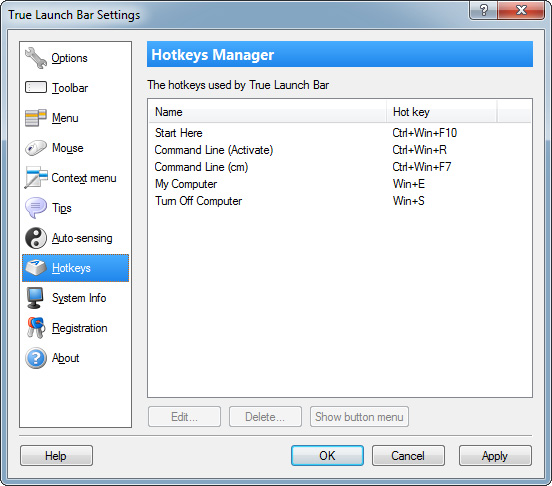
Hot keys Manager is a powerful tool for searching and editing of all hot keys that used in True Launch Bar.
Backup/Restore toolbar
Though it is possible to backup toolbar by copping toolbar folder now you can easy backup/restore toolbar to/from single file. The "General Options" tab of TLB Settings have two buttons for backup and restore toolbar.Improved Tooltips with HTML support

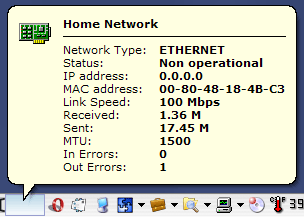
 True Launch Bar have the tooltips with the almost complete HTML support. Tooltips can show images (not an icons only) and if the text of the tooltip is very long, just scroll it with the mouse wheel. You can test the power of the new tooltips with the News Reader plugin. Also the positions of the tooltips are calculated to prevent overlaping the useful information.
Improved tips
True Launch Bar supports improved tips. TLB shows icon in tips and supports simple formatting of text. Moreover now you can change description for any button on TLB. To create tips with formatting you must right-click button Select Appearance submenu and click Change Description menu item. You can use some of HTML tags to format your text. Here is a list of these tags with short description:
| Tags | Description |
|---|---|
| <b>text</b> | "text" will be drawn as bold |
| <i>text</i> | "text" will be drawn as italic |
| <u>text</u> | "text" will be drawn as underline |
| <s>text</s> | "text" will be drawn as strikeout |
| <ct=0000FF> | Text's color after this tag will be BLUE. You can change RGB value to set other color |
| <cb=00FFFF> | Background color after this tag will be Cyan. You can change RGB value to set other color |
| <al> or <al_l> | Text will be aligned to the left |
| <al_c> | Text will be centered |
| <al_r> | Text will be aligned to the right |
| <hr=100%> | Draws horizontal line with length of whole text area in the tool tip |
| <hr=50> | Horizontal line with length of 50 point. |
| <t> | tab |
| <br> | new line |

Support PNG images as icon
True Launch Bar supports icons in PNG format. PNG images can have alpha channel to support transparency. True Launch Bar automatically resize images.Using 3 state PNG image as button
True Launch Bar supports 3 state PNG images. So you can create any image for button. This can be logo of you company, your photo or Start button:

PNG image must contain 3 state of button: normal, pressed and highlight.
Redistributing toolbars
It is very easy to redistribute your toolbars. First TLB can backup toolbar into one file and restore it on other computer. The buttons for backup/restore you'll find on the General Options tab of TLB Settings dialog box. Also now all icons and images can be stored with toolbar. So after restoring toolbar you do not need restore icons separately. And now you can install all skins for plugins and True Launch Bar from Skins tab of TLB Settings dialog box.Context menu templates
Now you can customize context menu by create your own templates for context menu. Context menus can be different for buttons, virtual folders, plugins and empty space of menus.Integration with StartKiller
The new version of StartKiller can be configured to disable Start menu and open the first menu on True Launch Bar. So when you press WIN key or CTRL+ESC True Launch Bar will open Start menu replacement on True launch Bar.Changing default command
You can change the behavior of the button when you click it. By default TLB execute the default command from shell context menu. Now you can overwrite this action and run any command. When this feature can be useful?
- If you run some application under different account you should right-click button and select "Run As..." menu item. Now you can set "Run As..." as default command and use it without right-click
- For folders with your music you can set the default command into "Play in Winamp" and every time you press shortcut or double click the Virtual Folder all files will be loaded into Winamp
- You can run slide show for folder by one click
- You can do more...
Customizing buttons and menu items
Now you can customize separate toolbar buttons and menu items. Here the list of properties that can be changed:
- The text label can be bold or/and italic
- You can change the alignment of the text label for menus
- Every button and menu item can have own icon size
- And any button menu item can have own context menu
- and more other options...
To change the default command right-click button point Appearance submenu and click Button Properties menu item.
Improved Custom Colors
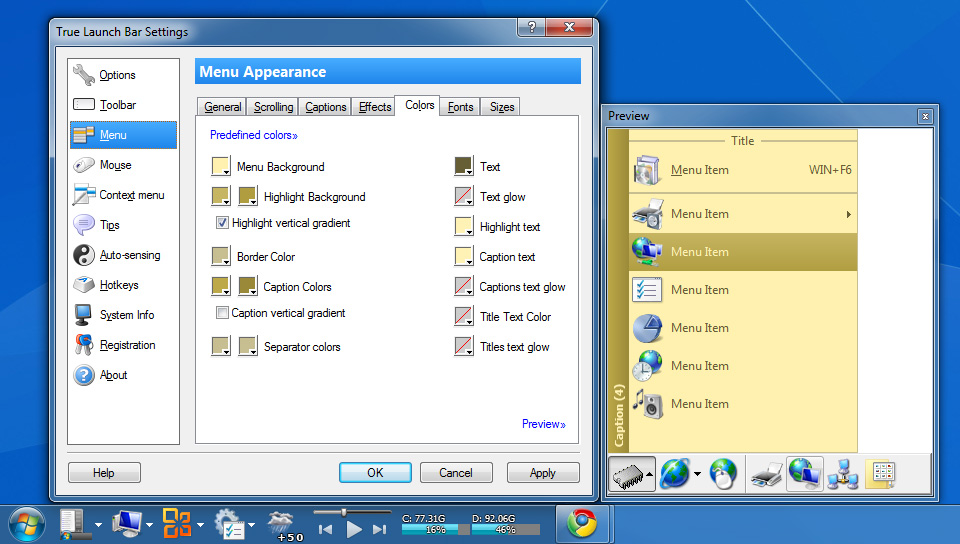
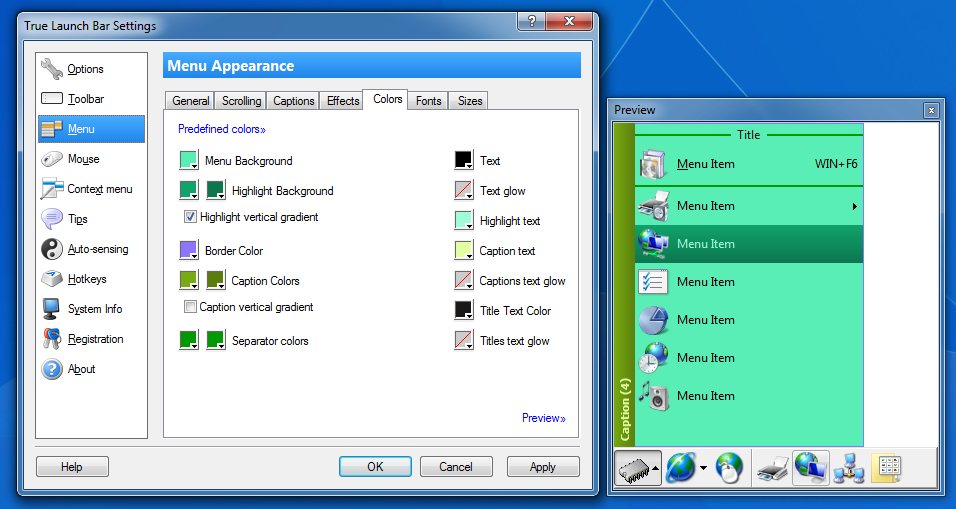
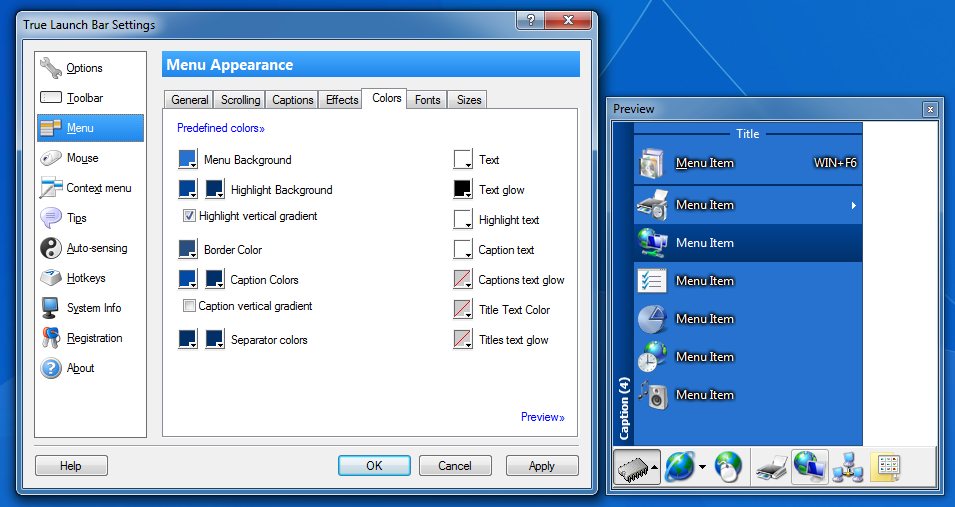
Now you can overwrite any element of skin with your custom colors. In addition we've added the gradients for toolbar background and menu selection color. You can use vertical or/and horizontal gradients. Also you can change the colors of separators, toolbar buttons, text colors etc.
Tear Off Menu
Using this feature you can create menus that never closed. You can place these menus at any position on the desktop, also you can change "Always On Top" attribute for the menu. To tear off the menu right-click opened menu and select "Tear Off Menu" menu item. Now you can move the menu at any position. Note, to move menu you must click and drag the menu caption. To chage the options torn off menu right-click it and select:
- Tear Off Menu - make the menu as normal
- Always on Top - make menu on top of all windows or not
- Close menu - to close menu
Please note when you make the menu torn off then the menu button becomes as normal button and it opens or activate the torn off menu. And as well as for normal menus you can use hotkeys to open the turn off menu.
Column break for separators
 You can control the menu columns and begin the new column with the separators. Right-click the separator and select Appearance->Column Break to make new column. There are two restrictions for this feature: the menu must be in the default view mode (multicolumn text menu is not supported) and the scrolling of the menu will break the column layout (the layout become the default). You can view this feature in work on the video (at the left).
Combine the default menu items with Icon View menu items
 You can to combine the default menu items with the icons only items already. With the new version of True Launch Bar it is possible to add the text labels to the icons (to make the Icon View style menu items). Play the video at the left to view how this works.
Menu labels Word Wrap
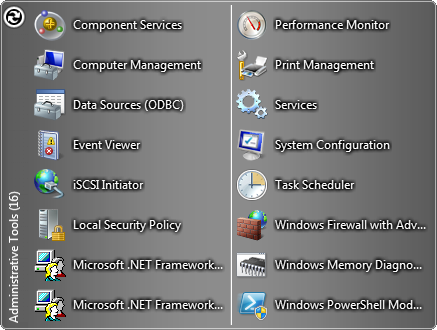
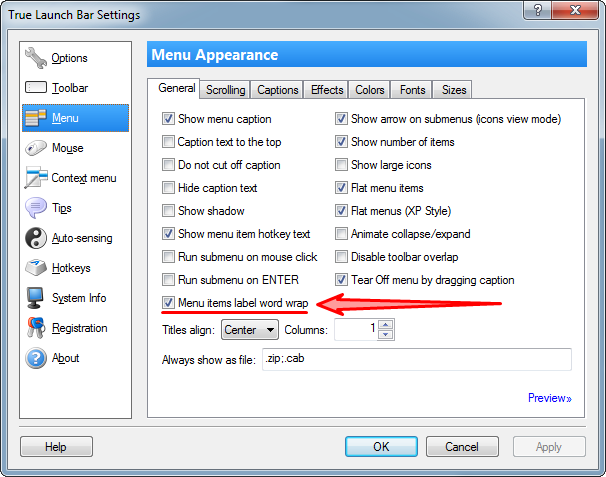
If you want to see the complete menu items names and if you hate the ellipsis, then this option is for you. You can turn on/off the word wrapping globally in TLB Settings or for single menus. If the word wrapping is turned on, TLB shows the label text wrapped into multiple lines.


Docked menus with auto-hide feature
 With True Launch Bar you can dock the tear-off menus. Hold down the CTRL key and move menu to any edge of the screen to dock menu. To make the docked menu auto-hide, right-click in the menu and select "Auto-hide" option. To change the show/hide animation open TLB Settings->Menu->Docked. Also the Customize menu dialog box have some options to change the size and position of the hot spot.
Standalone TLB: Toolbar Tags
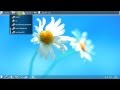 With the toolbar tags you can show the toolbar in auto-hide mode by clicking by tag. Tag is the colored area. You can create some toolbars attached to the same screen side and set the tags for them - something like the tabbed interface. The color, size and positions of the tags are customizable: right-click the empty space of toolbar, select "Toolbar Properties" then Auto-hide->Toolbar Tag.
Note: This feature works with Standalone True Launch Bar only.
Background color for any item.
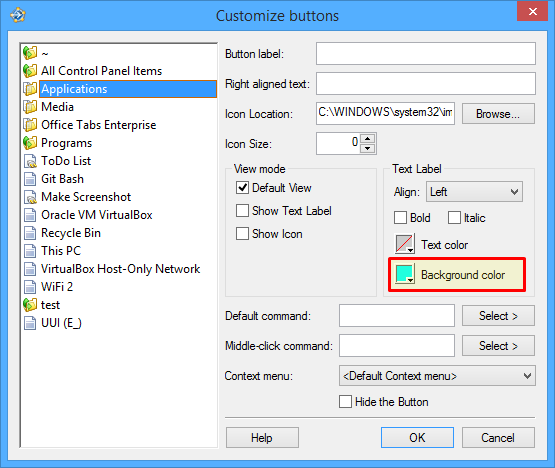
You can select the background color for any item to highlight it. Right-click any item, select Appearance->Background Color, click any color or click the "More colors" menu item to select non default color. To set colors for some items at once, right-click any item and select Appearance->Button Properties. This will open the Button Properties dialog box where you can select the color for all items.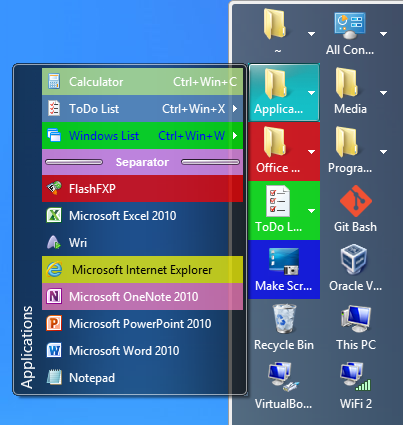
Toolbars management.
We've simplified and improved the toolbar management. As you know, the toolbar folder it the main concept for True Launch Bar. TLB saves all settings, shortcuts, menu etc. in the toolbar folder. By default TLB uses the standard quick launch folder and this is enough for the single toolbar. When you need the second toolbar, you have to create folder for the new toolbar. Now True Launch Bar can create the toolbar folder in your profile. Just type a name of your toolbar. This working for portable versions as well. Anyway you can still select any custom folder as a toolbar folder.